# Additional Settings
## Enable customer accounts
You can make customer accounts essential or optional or disable them according to your choice. Moreover, customers redirect to a separate account creation page when creating an account.
To edit your customer account settings:
* From your Shopify admin, go to Settings > Customer account.
* In the "Customer accounts" section, click to Edit.
* Enable "Show login link in the header of online store and at checkout".
* Click **Save**.
## Enable dynamic checkout buttons
Customers can use the **"Dynamic checkout"** button to buy the product they’re viewing instantly. They can skip the cart and complete their payment with the checkout method that display on the Button. The Button dynamically changes to reflect the customer’s preferences which accelerates the checkout method.
All themes include **Dynamic checkout buttons** buttons and a secondary add-to-cart button that sends the customer directly to the “Checkout page” and completes the purchase with their choice of payment type.
To enable dynamic checkout in your theme:
* From your Shopify admin, go to **Online Store & Themes.**
* Click **Customize**.
* In **Product information** section, click on **Buy buttons.**
* Select **Show dynamic checkout buttons**.
* Click **Save**.
## Remove "Powered by Shopify"
Log in to your store admin. In your Shopify admin dashboard, go to **Themes**, and find the theme that you want to edit. When you see a dropdown section, select **Edit code**
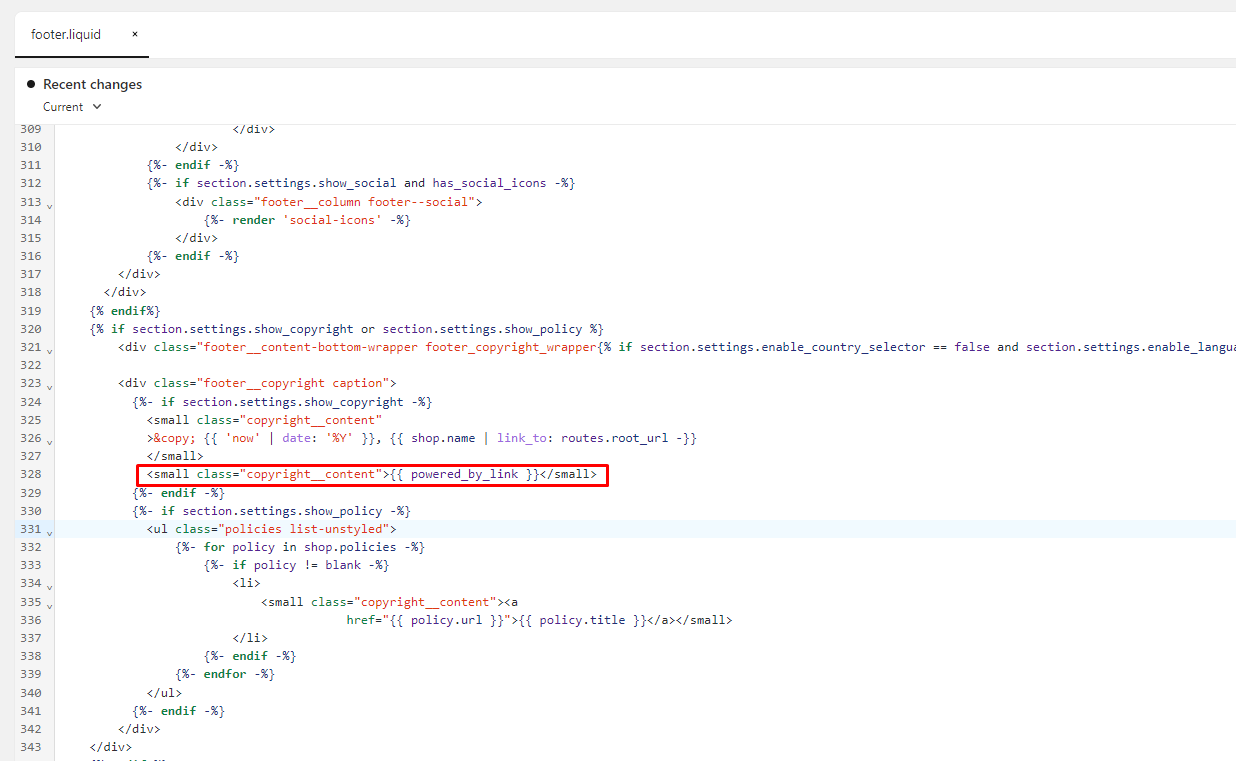
Go to Sections > **footer.liquid.**
Press Ctrl + F (Command + F) and Search **{{ powered\_by\_link }}**.
Delete this line and click **Save**.