# Collection Page

## Collection image <a href="#collectionimage" id="collectionimage"></a>

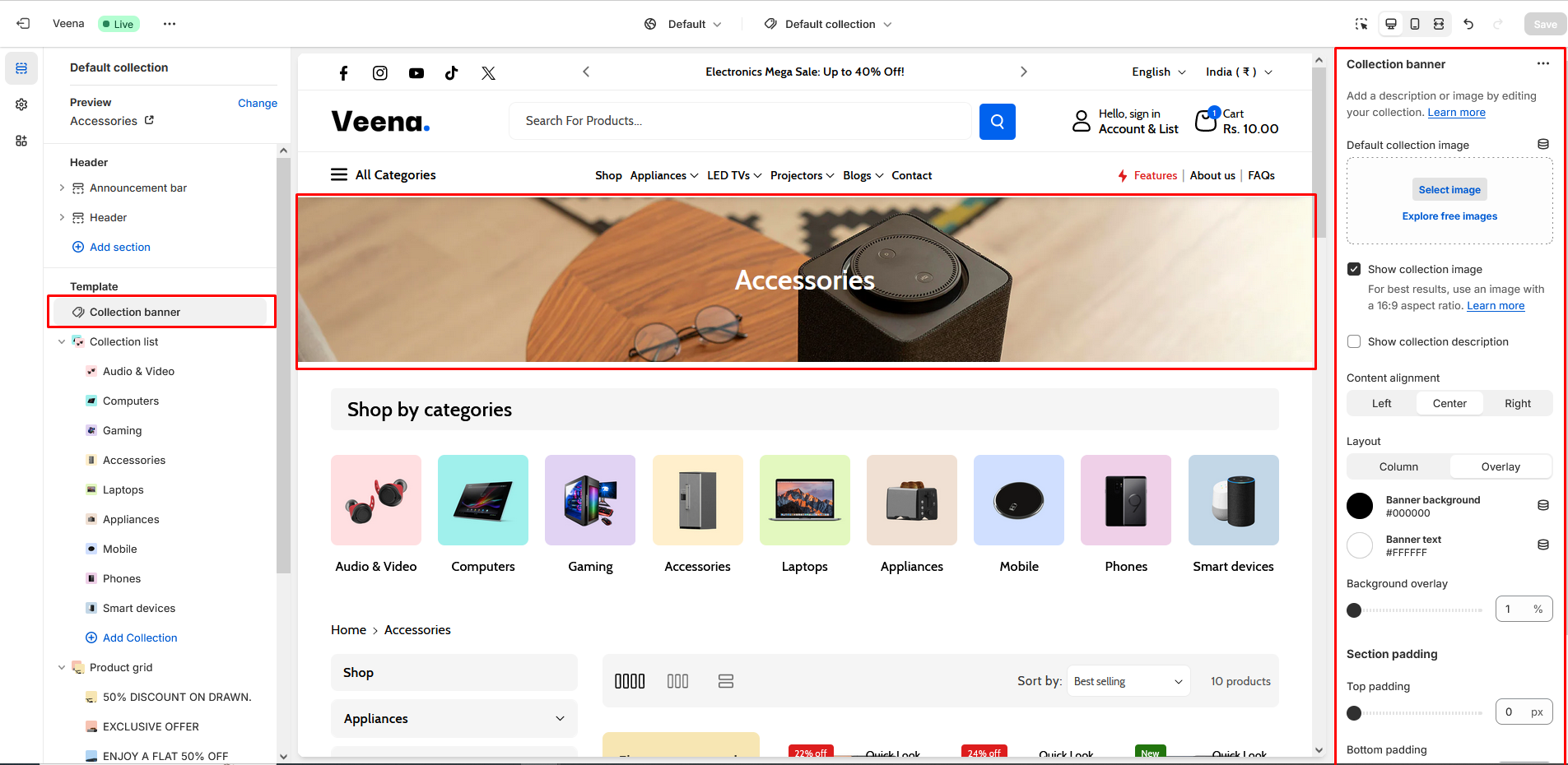
To set up a collection image section:

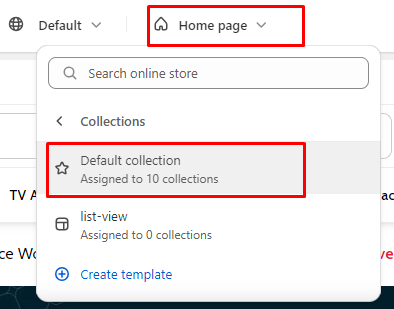
* Go to Customize theme. At the top of the page, use the dropdown to select a template that contains a collection banner section.
* Select **Collections** > **Default collection**.

<figure><img src="https://content.gitbook.com/content/pOgAXZovgZLUeG0YgXOA/blobs/RYNn3xSjVqlJpWPtwolI/default-collection.png" alt=""><figcaption></figcaption></figure>

***

## From the side panel, select the Collection banner block.

<table><thead><tr><th width="230">Settings</th><th>Description</th></tr></thead><tbody><tr><td>Default collection image</td><td>Use "Default collection image" to add the image to the section.</td></tr><tr><td>Show collection image</td><td>Enabling this checkbox will allow you to display the added image in the collection.</td></tr><tr><td>Show collection description</td><td>Enabling this checkbox will allow you to display the added description in the collection.</td></tr><tr><td>Content alignment</td><td><p>Customization of "Content alignment" as follows:</p><ul><li>Left</li><li>Center</li><li>Right</li></ul></td></tr><tr><td>Layout</td><td><p>Customization of the "Layout" in the collection banner is as follows:</p><ul><li>Column</li><li>Overlay</li></ul></td></tr><tr><td>Banner background</td><td>Modifying the color of the banner background will result in a corresponding color change for the banner background.</td></tr><tr><td>Banner text</td><td>Modifying the color of the banner text will result in a corresponding color change for the banner text.</td></tr><tr><td>Background overlay</td><td>By enabling this checkbox, you have the ability to change the opacity of the image overlay. Modify the "Background overlay" setting to increase or decrease the opacity level of the overlay on the collection banner image.</td></tr></tbody></table>

<figure><img src="https://content.gitbook.com/content/pOgAXZovgZLUeG0YgXOA/blobs/F0DDVtgX2aDWDDDHW9eX/coll-banner-1.png" alt=""><figcaption></figcaption></figure>

To display various images in the all collection, you can add images through the metafield. Please follow these guidelines : [Collection banner metafield](https://webibazaar.gitbook.io/veena-documentation/collection-page/collection-banner)

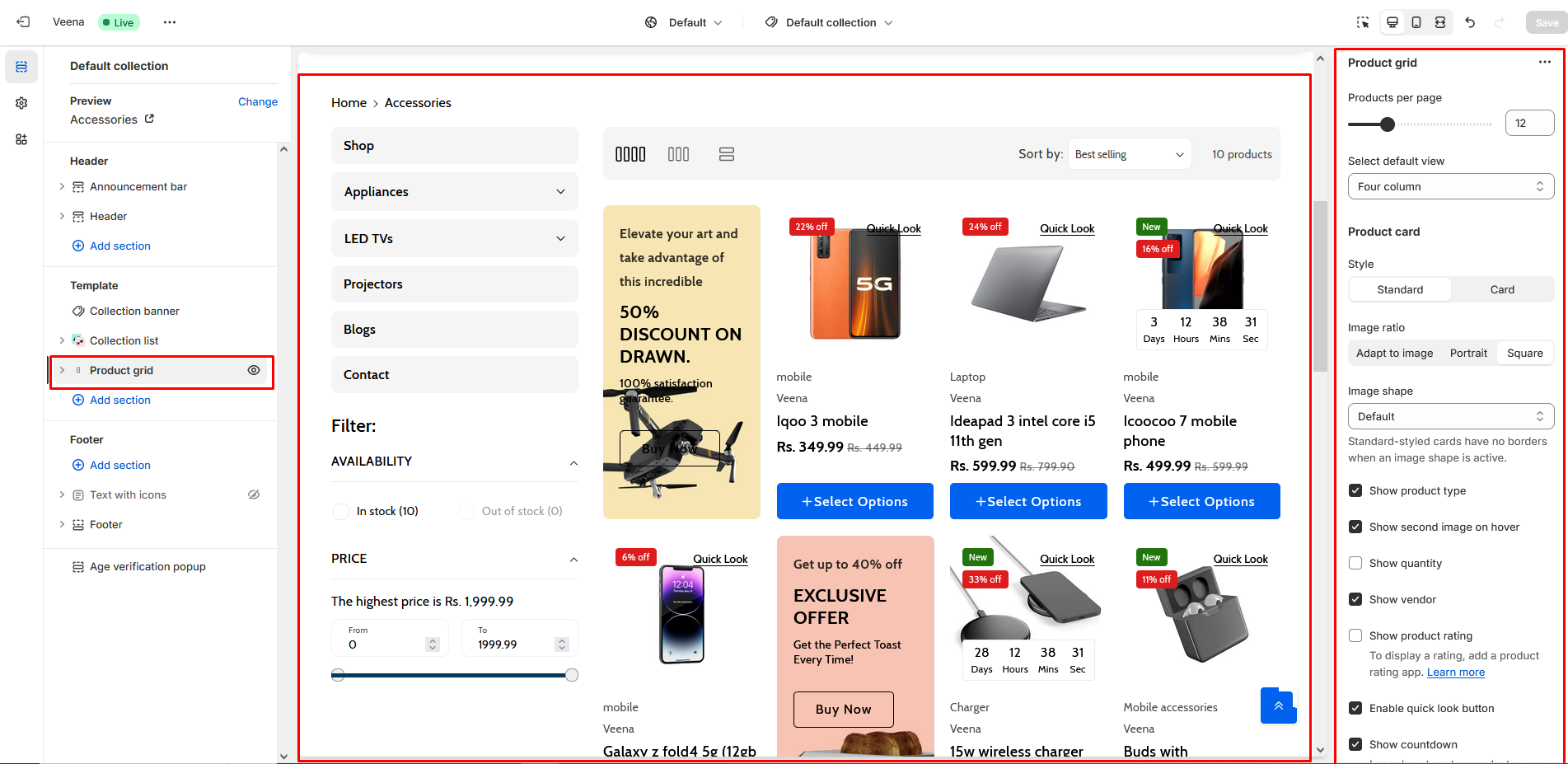
## Product Grid <a href="#productgrid" id="productgrid"></a>

<table><thead><tr><th width="230">Settings</th><th>Description</th></tr></thead><tbody><tr><td>Products per page</td><td>"Products per page" is to specify how many products to show in this page. You can show a minimum of “8” and a maximum of “24” products.</td></tr><tr><td>Select default view</td><td><p>Utilize these settings to select the columns for the product. "Select default view" in a section are as follows:</p><ul><li>Four column</li><li>Three column</li><li>List view</li></ul></td></tr><tr><td>Product card</td><td><p><strong>Style</strong></p><p>The customization of the style in the product section are as follows:</p><ul><li>Standard</li><li>Card</li></ul><p><strong>Image ratio</strong></p><p>Product image customizations in a section are as follows:</p><ul><li>Adapt to image</li><li>Portrait</li><li>Square</li></ul><p><strong>Image shape</strong><br>Product image shape customizations in a section are as follows:</p><ul><li>Default</li><li>Arch</li><li>Blob</li><li>Chevron left</li><li>Chevron right</li><li>Diamond</li><li>Parallelogram</li><li>Round</li></ul><p><strong>Show product type</strong></p><p>By enabling this checkbox you can “Show product type”.</p><p></p><p><strong>Show second image on hover</strong><br>By enabling this checkbox you can “Show the second image on hover”.<br></p><p><strong>Show quantity</strong><br>By enabling this checkbox you can display the “Product quantity field”.</p><p><br><strong>Show vendor</strong><br>By enabling this checkbox you can display the “Product vendor”.<br><br><strong>Show product rating</strong><br>Enable this checkbox to display "Product rating".<br><br><strong>Enable quick look button</strong><br>Enable this checkbox to display the "Quick look button".<br><br><strong>Show countdown</strong><br>Enabling this checkbox to display the "countdown timer".<br><br><strong>Enable product-list description</strong><br>By enabling this checkbox you can show the “Product-list description”.</p></td></tr><tr><td>Variants</td><td><p><strong>Show variants</strong><br>By enabling this checkbox you can display the “Product variants”.<br><br><strong>Type</strong></p><p>If the type is "Dropdown," then the variant would be dropdown. And if the type is "Pills," then the variant would be Pills. The variant types are as follows:</p><p>Type:</p><ul><li>Dropdown</li><li>Pills</li></ul><p><strong>Enable color swatches</strong><br>Enabling this checkbox will show the "Variant color."</p></td></tr><tr><td>Stock bar</td><td><p>"Stock countdown" is for customizing the product stock.<br><br><strong>Show stock bar</strong><br>By enabling this checkbox you can show the “Stock bar”.<br></p><p><strong>Maximum stock</strong><br>Adjust maximum the stock for the stock countdown. Maximum product stock can be given up to "200".<br></p><p><strong>Limit stock cut off</strong><br>Adjust the limited stock cut-off for the stock countdown.<br></p><p><strong>Limit stock message</strong><br>Display limit stock message.<br></p><p><strong>In stock message</strong><br>Display the "In stock" message.<br></p><p><strong>Continue selling message</strong><br>Display the "Continue selling" message.<br><br><strong>Colors</strong><br>Customize the colors of  Limited stock, In stock and Continue selling text.</p></td></tr><tr><td>Filtering and sorting</td><td><p><strong>Enable filtering</strong><br>By enabling this checkbox you can display the “Product filter”.<br></p><p><strong>Desktop filter layout</strong></p><p>Product filter layout customizations in a page are as follows:</p><ul><li>Horizontal</li><li>Vertical</li><li>Drawer</li></ul><p><strong>Enable sorting</strong><br>By enabling this checkbox you can display the “sorting select box”.<br><br><strong>Collections filter block</strong><br>Click on "Select menu" to add a menu in the collection filter block.</p></td></tr><tr><td>Pagination</td><td><p><strong>Pagination type</strong></p><p>Pagination type customizations in a page are as follows:</p><ul><li>Paged navigation</li><li>Load more button</li></ul></td></tr><tr><td>Mobile layout</td><td><p><strong>Number of columns on mobile</strong></p><p>"Number of columns on mobile" is used for the customization of product columns in Mobile devices.</p><ul><li>1 Column</li><li>2 Columns</li></ul></td></tr></tbody></table>

<figure><img src="https://content.gitbook.com/content/pOgAXZovgZLUeG0YgXOA/blobs/32LL3q17jaIK3HxtX07z/coll-banner-2.png" alt=""><figcaption></figcaption></figure>

## Add block

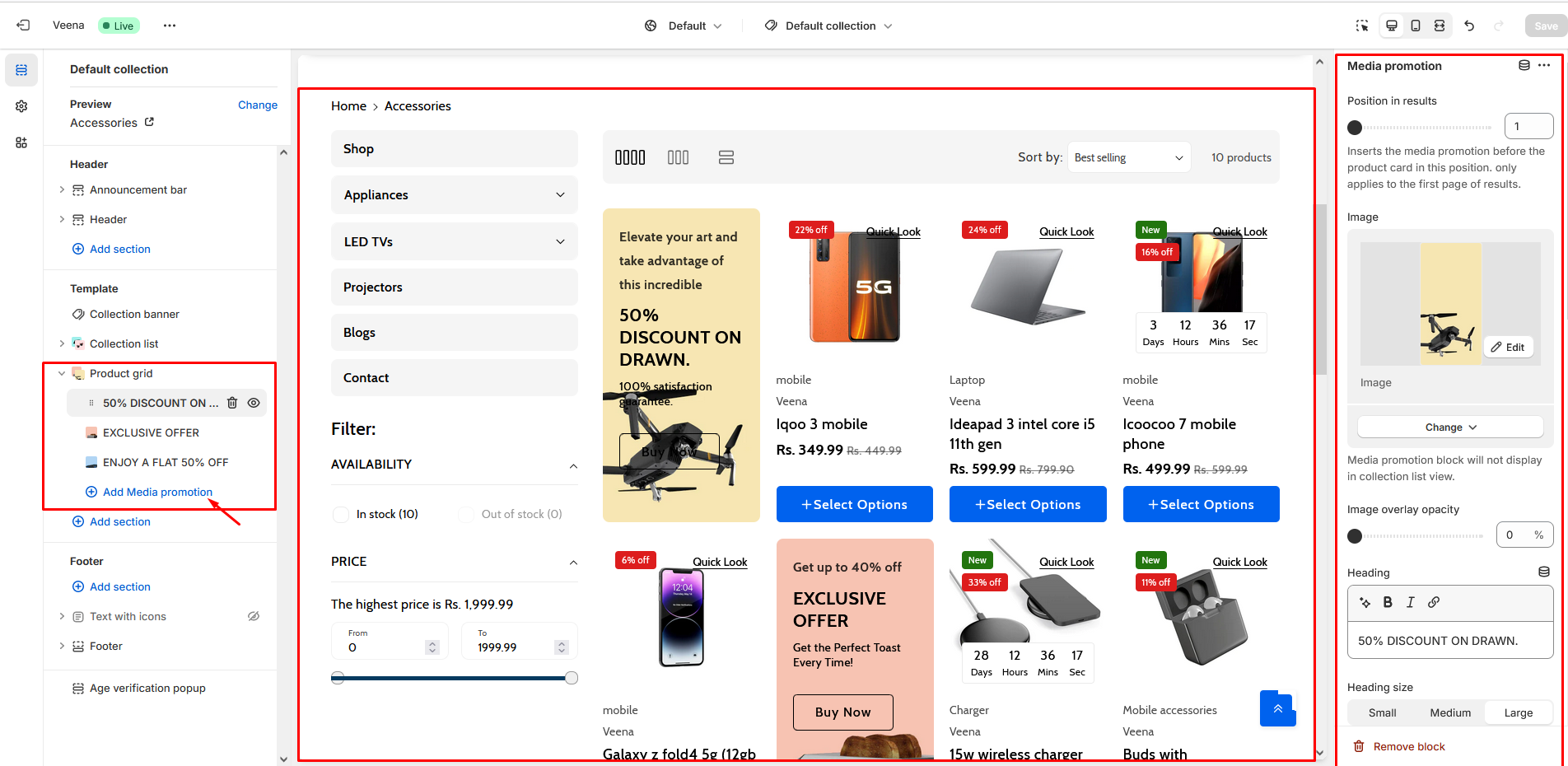
To add block to the product grid, click on the 'Add media promotion'. There are many options available , as you can see in the below points and screenshot.

<table><thead><tr><th width="272">Block</th><th>Description</th></tr></thead><tbody><tr><td>Position in results</td><td>Inserts the media promotion before the product card in this position. only applies to the first page of results.</td></tr><tr><td>Image</td><td>Use "Image" to add the image to the section.</td></tr><tr><td>Image overlay opacity</td><td>By enabling this checkbox, you have the ability to change the opacity of the image overlay. Modify the "Image Overlay Opacity" setting to increase or decrease the opacity level of the overlay on the banner image.</td></tr><tr><td>Heading</td><td>Enter text to display as on the "heading" section.</td></tr><tr><td>Heading size</td><td><p>Following is the font size customization of the heading of the section:</p><ul><li>Small</li><li>Medium</li><li>Large</li></ul></td></tr><tr><td>Sub heading</td><td>Enter text to display as on the "sub heading" section.</td></tr><tr><td>Description</td><td>Enter text to display as a "description" in the section.</td></tr><tr><td>Description style</td><td><p>Customization of the "Description style" in this section is as follows:</p><ul><li>Body</li><li>Subtitle</li><li>Uppercase</li></ul></td></tr><tr><td>Button label</td><td>Use "Button label" to add a label to the Button in the section.</td></tr><tr><td>Button link</td><td>Use "Button link" to add a link to the Button in the section.</td></tr><tr><td>Open this link in a new window</td><td>By using the "Open this link in a new window" option, the link will open in a new tab.</td></tr><tr><td>Button style</td><td><p>Customization of the "Button style" is as follows:</p><ul><li>Link</li><li>Outline button</li><li>Solid button</li></ul></td></tr><tr><td>Show container</td><td>When 'Show container' is enabled, the banner's content container box will be visible.</td></tr><tr><td>Container overlay opacity</td><td>By enabling this checkbox, you have the ability to change the container overlay opacity. Modify the "Container overlay opacity" setting to increase or decrease the opacity level of the overlay on the banner content.</td></tr><tr><td>Desktop content position</td><td><p>To change the position of the content on the banner, utilize the "Desktop content position" setting. Customization of the "Desktop content position" in this section is as follows:</p><ul><li>Top left</li><li>Top center</li><li>Top right</li><li>Middle left</li><li>Middle center</li><li>Middle right</li><li>Bottom left</li><li>Bottom center</li><li>Bottom right</li></ul></td></tr><tr><td>Desktop content alignment</td><td><p>Customization of "Desktop content alignment" in desktop devices is as follows:</p><ul><li>Left</li><li>Center</li><li>Right</li></ul></td></tr><tr><td>Color scheme</td><td><p>In this section, you can change the background and foreground color of a section using the color scheme.</p><ul><li>Scheme 1</li><li>Scheme 2</li><li>Scheme 3</li><li>Scheme 4</li><li>Scheme 5</li></ul></td></tr></tbody></table>

<figure><img src="https://content.gitbook.com/content/pOgAXZovgZLUeG0YgXOA/blobs/RQmdUcQ4e4S3upt5TLVy/product-grid-grid.png" alt=""><figcaption></figcaption></figure>

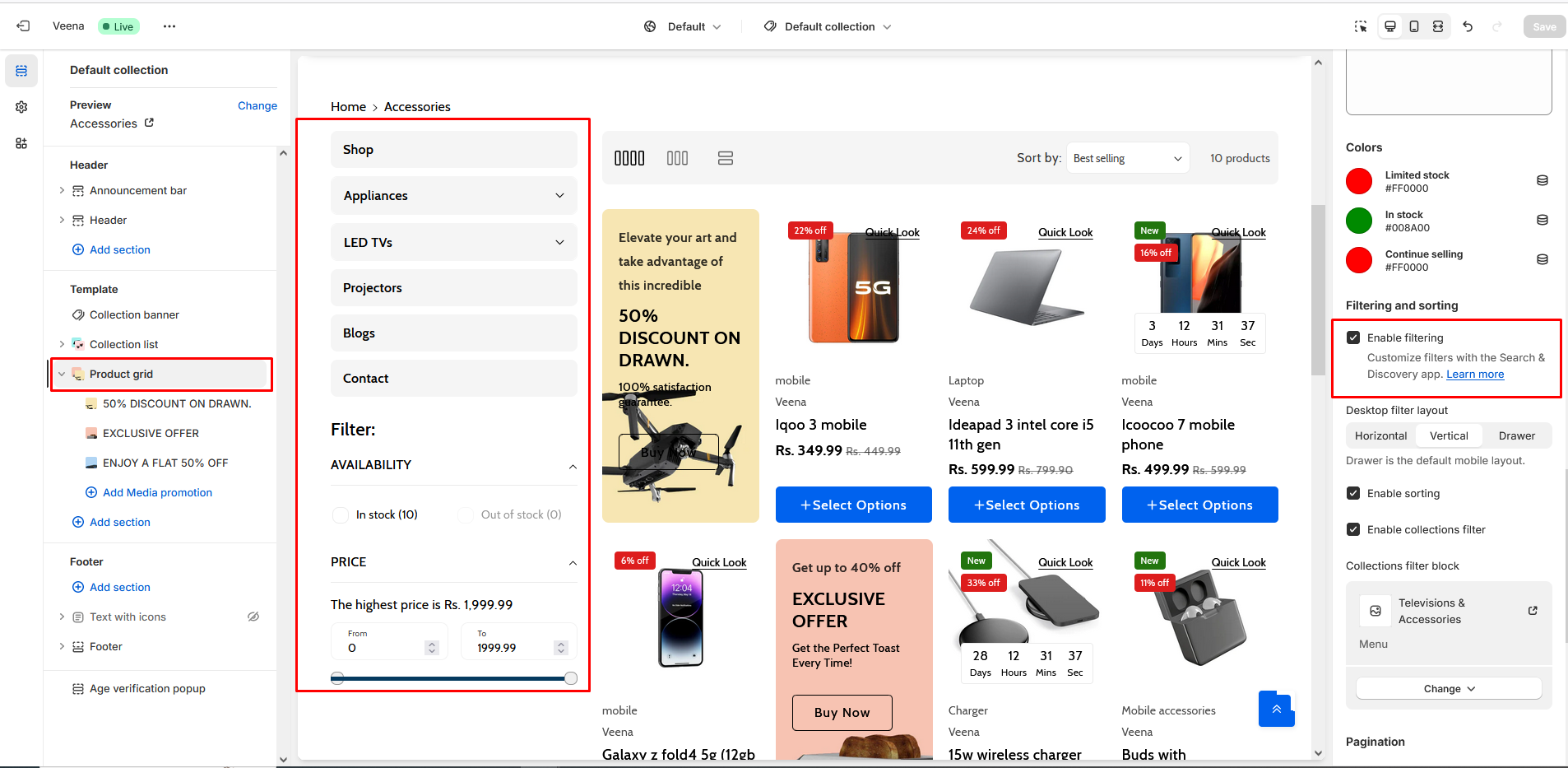
In the below screenshot, the product grid section is shown on a store’s Collection page. Inside the section, the checkbox options are set to Enable filtering and Enable sorting.&#x20;

With these options enable visitors can select a range of products within a collection by using filtering criteria like availability, size, and price.

***

## Collection page filter <a href="#collectionfilter" id="collectionfilter"></a>

Here's an overview of how to set up filters in the sidebar of your **Collection page** when using the OS 2.0 version.

Here's an example showing a collection page sidebar.

### **Add filters to your collection page**

Follow the below steps to select which product filters you want to display.

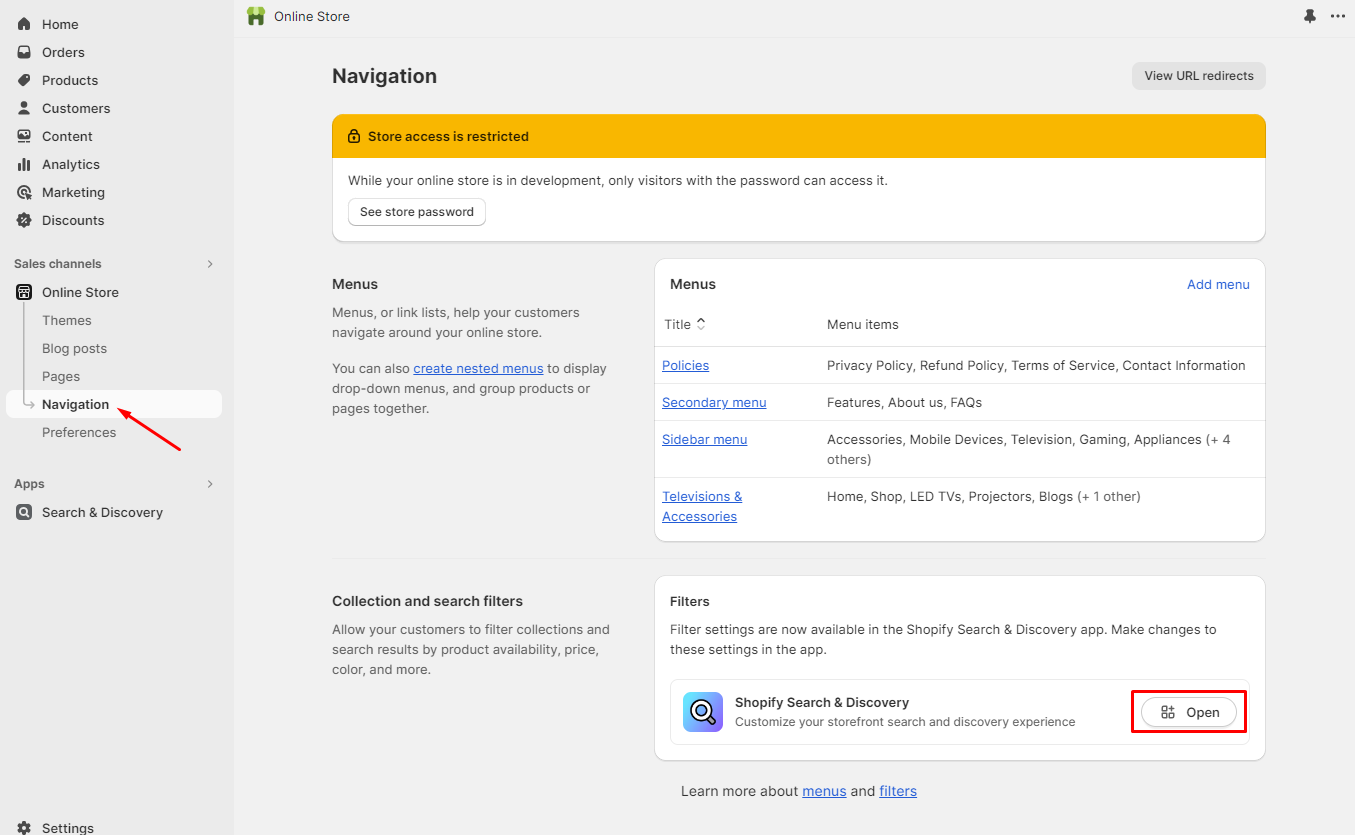
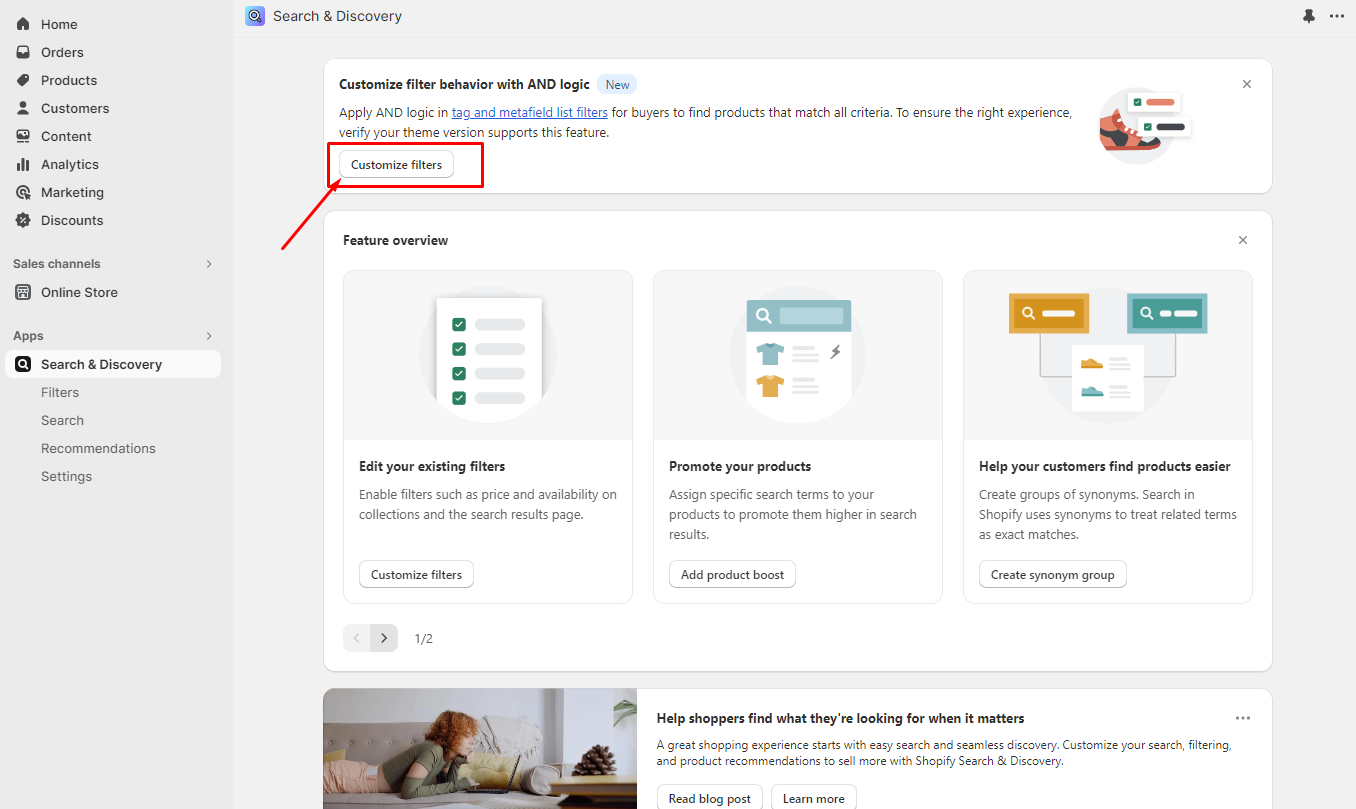
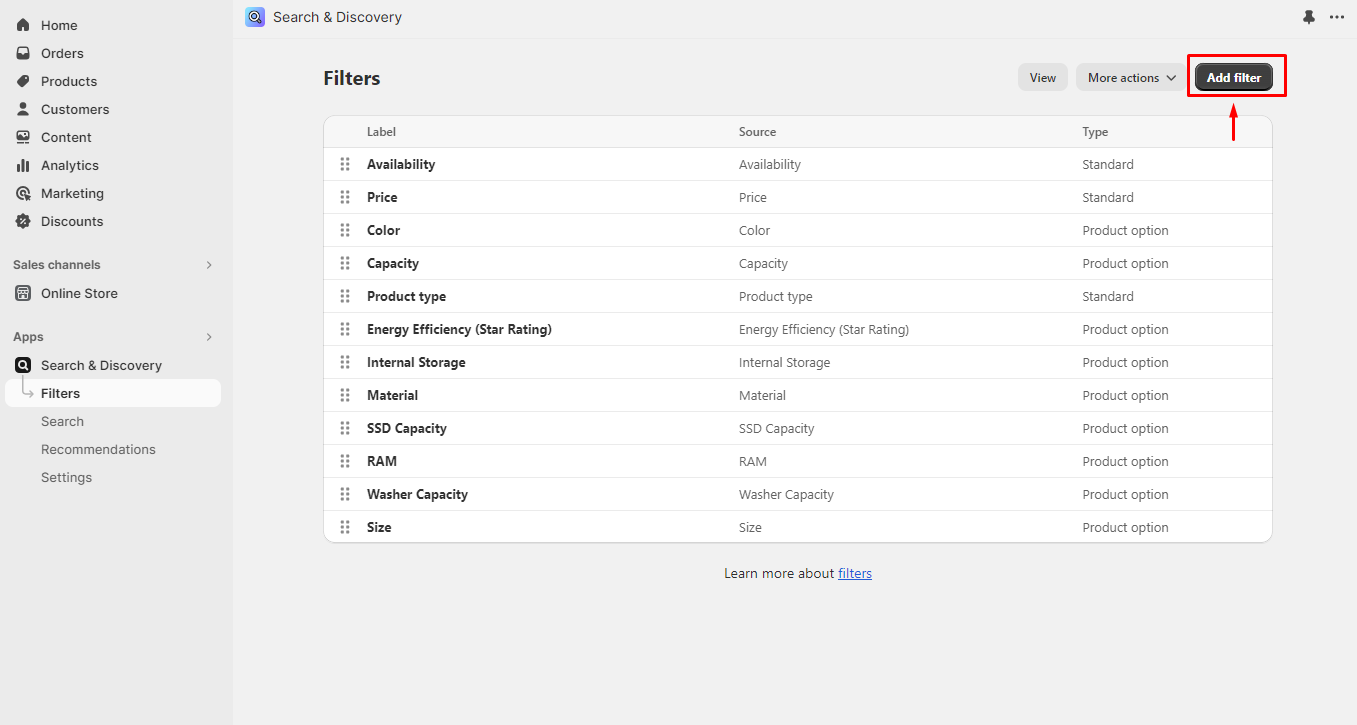
1. To add a filter to the Collection page, go to Online Store > Navigation > Collection and search filters > Open.

<figure><img src="https://content.gitbook.com/content/pOgAXZovgZLUeG0YgXOA/blobs/JmbJgUpZsBWK6wC3EWis/coll-filter1.png" alt=""><figcaption></figcaption></figure>

<figure><img src="https://content.gitbook.com/content/pOgAXZovgZLUeG0YgXOA/blobs/qIHxaGZdRpKuGI8r8F2I/coll-filter2.png" alt=""><figcaption></figcaption></figure>

<figure><img src="https://content.gitbook.com/content/pOgAXZovgZLUeG0YgXOA/blobs/Zr9DQ5KPatwgO7bPtVW4/coll-filter3.png" alt=""><figcaption></figcaption></figure>

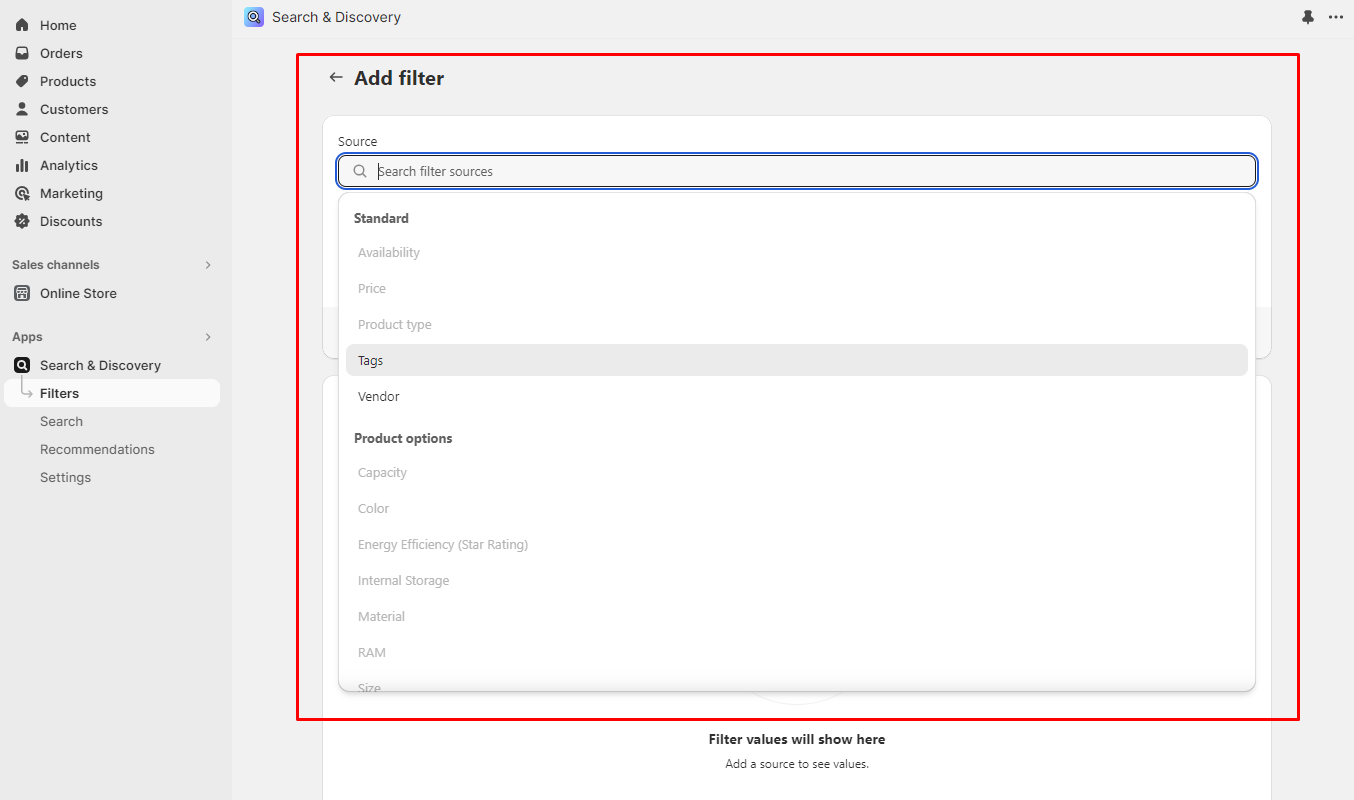
2. Check the box for any filters you want to display on the collection page. If you want to display product variant options (according to your store’s already existing product variants), then select Product options and you will be able to select which ones you want to display.

<figure><img src="https://content.gitbook.com/content/pOgAXZovgZLUeG0YgXOA/blobs/au9lcumvBENC58hwCiwk/add-filter.png" alt=""><figcaption></figcaption></figure>

3. Check the relevant boxes, and select Done and Save to ensure the implementation of the changes is done before l leaving the area of the Shopify Admin. After selecting which filters you want to display in your collection page’s sidebar, you now need to return to the theme editor to set the collection page to display them on your store.

***

### **Display the filter in a sidebar**

1. Open theme editor.
2. Select **Collections** > **Default collection**.

<figure><img src="https://content.gitbook.com/content/pOgAXZovgZLUeG0YgXOA/blobs/RYNn3xSjVqlJpWPtwolI/default-collection.png" alt=""><figcaption></figcaption></figure>

3. After opening "**Default collection**", Check "**Enable filtering**" Option.

<figure><img src="https://content.gitbook.com/content/pOgAXZovgZLUeG0YgXOA/blobs/cu3Xk1iGfpae1RLpzdK3/enable-filter.png" alt=""><figcaption></figcaption></figure>

4. Select "**Save**" and ensure that your changes have taken effect before leaving the theme editor.

{% embed url="<https://youtu.be/IbYWO7HA1vk>" %}