# Page
## Use page templates
To use the custom page templates in-store, create a new Shopify page or use an existing one.
If you have a Shopify online store, then you can create webpages in your Shopify admin. Webpages contain information that rarely changes or that customers will often reference, like an “About Us” page or a “Contact Us” page.
* Go to Online Store > Pages.
* Click Add page.
* Enter a title and content for the page.
Be descriptive and clear when choosing your webpage title. The webpage title displays in the tab or title bar of browsers. It also appears as the page title in search engine results.
* Under Visibility, select when you want to publish the page. By default, your new webpage will be visible when you click Save. Select the Hidden option if you want your new webpage to be hidden from your online store, or click Set a specific publish date to [control when your webpage is published](https://help.shopify.com/en/manual/shopify-admin/productivity-tools/future-publishing).
* Click Save.
## **Default Page**
Select "**Default Page**" to assign a template from your current theme to define how the page should display.
## **About Us**
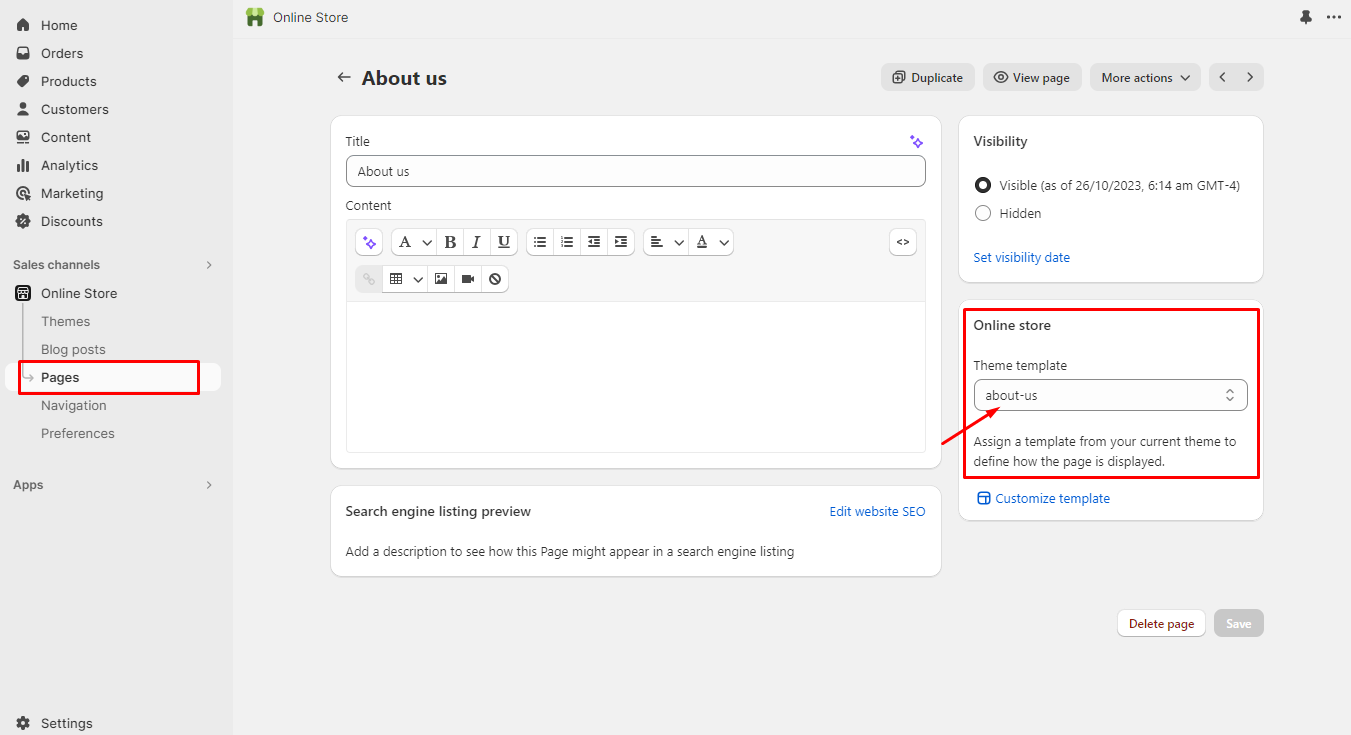
To add an **About** us or our store **Page**, Select **Aboutus** in the Theme Template dropdown.
When you select **aboutus** in a dropdown, you will be able to customize this page.
## **Contact Us**
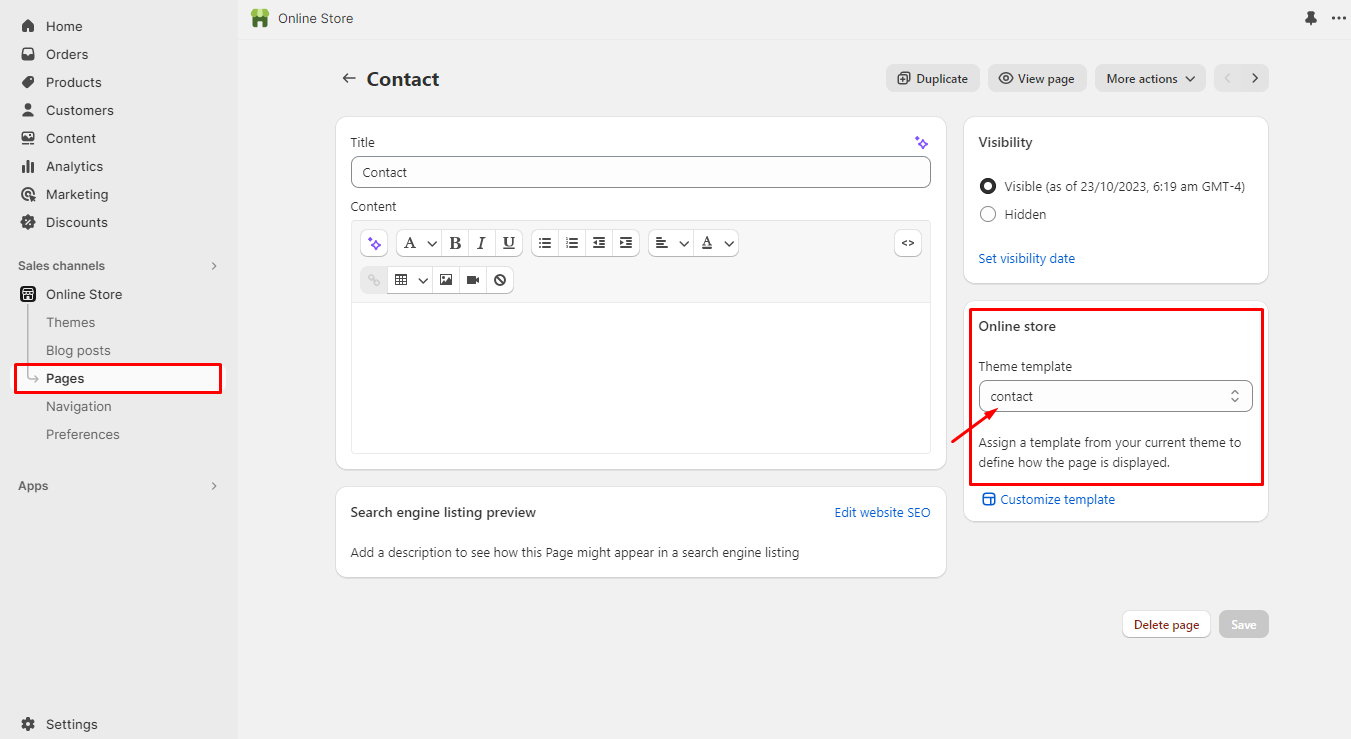
To add **Contact us** page, select a **contact** in Theme Template dropdown.
To add the **Contact us** page, select contact in the Theme Template dropdown. When you select **Contact** in the dropdown, you will be able to customize the contact page.
## **Faq**
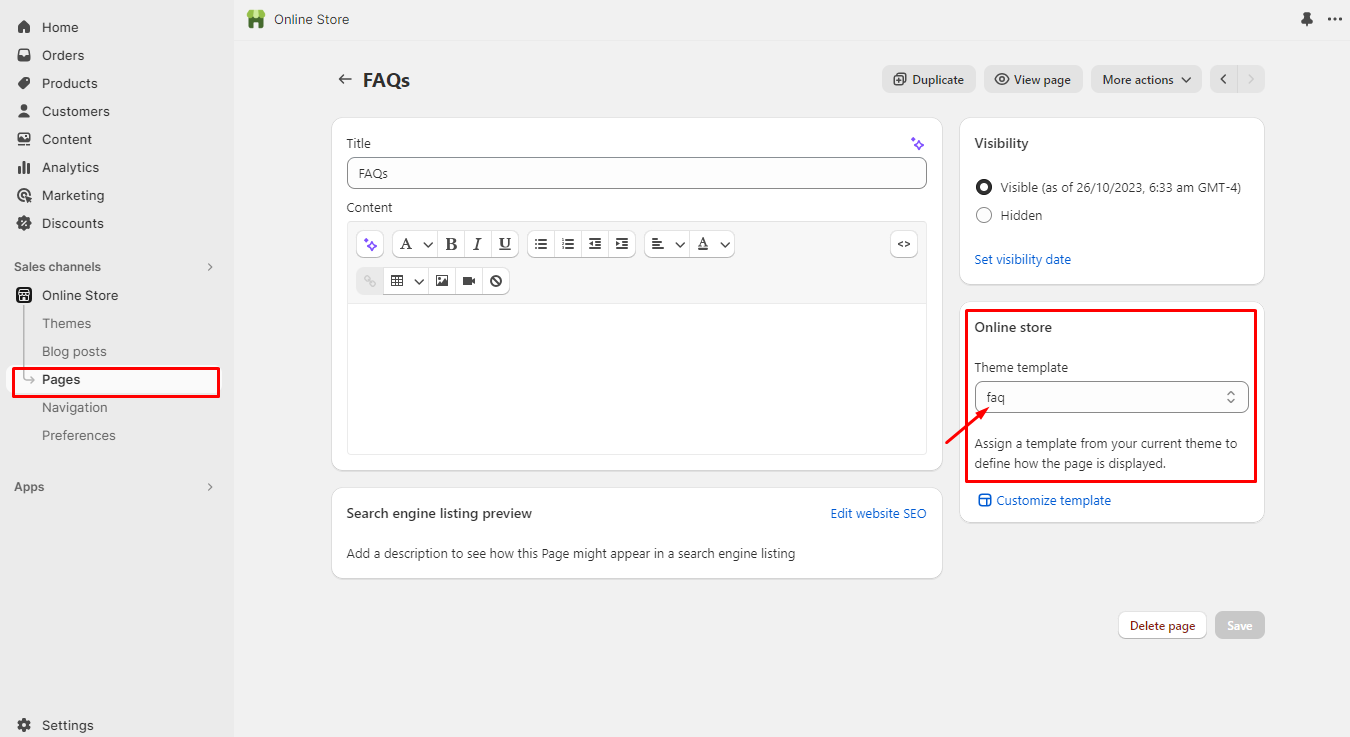
To add **Faq** page, select a **faq** in Theme Template dropdown.
When you select **faq** in a dropdown, you will be able to customize this page.