
Mega menu
Shopify allows you to nest menus and menu items in the Online Store Navigation Editor. You can build dropdown menus by creating or moving menu items so that they are “Nested” below a top-level item. Follow these steps to add Navigation:
From your Shopify admin, go to Content > Menus > Create menu.
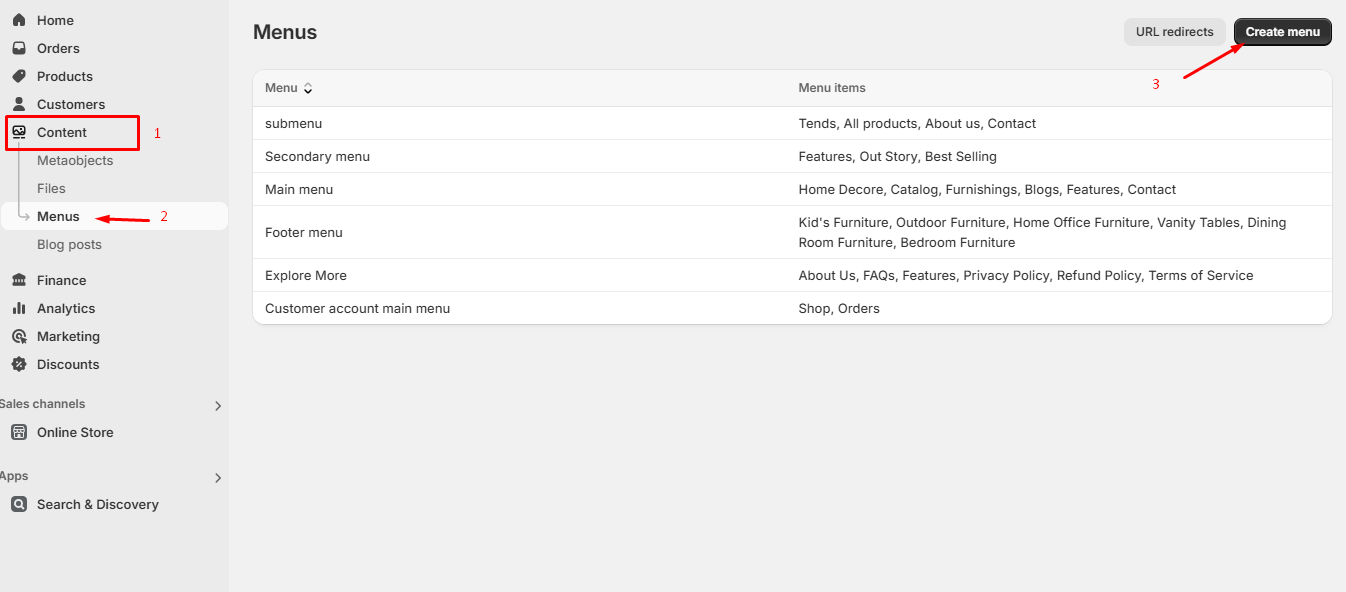
Click the name of your Main menu.
Choose one of the menu items to be the header for your dropdown menu, or add a new menu item to be the header. If you don't want the header to link to anything, then you can enter '#' in the Link field when you add the menu item.
Add menu items to include in the new dropdown menu. Click Add menu item enter the name of the menu item, and enter or select a destination for the link.
Click and drag the menu items to nest below the header item.
Click the Save menu.

There are multiple types of Mega menus you can add to your store
Select the Header from the theme editor.
Click on "Add block.", user can create three types of blocks: Mega menu products, Mega menu submenu/gallery, Mega menu blog, Secondary menu.
Mega menu with products
Click on "Add block" and add the Menu with products block.

Mega menu with the product allows you to add products with a submenu. Please follow the screenshot.

Typing the same menu name in the Menu label will connect this menu to the Mega menu that is built through the theme editor. Check the below screenshot.
Mega menu image with text
Click on "Add block" and add the Menu image with text block.

This Mega menu allows you to add image with text. Please follow the below screenshot.

Mega menu with collections
Click on "Add block" and add the Menu with collections block.

This Mega menu allows you to add collections. Please follow the below screenshot.

Contact details dropdown
Click on "Add block" and add the Contact details dropdown block.

This Mega menu allows you to add contact details dropdown. Please follow the below screenshot.

Offer details dropdown
Click on "Add block" and add the Offer details dropdown block.

This Mega menu allows you to add offer details dropdown. Please follow the below screenshot.

Menu badge
Click on "Add block" and add the Badge block.

This Mega menu block allows you to add badge. Please follow the below screenshot.

Menu icon
Click on "Add block" and add the Menu icon block.

This Mega menu block allows you to add icon to the menu. Please follow the below screenshot.

Click "Add section" and use some sections.
We are providing one special feature, You can add multiple additional sections in the header.

Last updated